No Code Workflow Automation: How Small Business Owners Can Build Automations Without a Developer

You don’t need a developer to get started with automation. In fact, you can get started today with no-code solutions that use a drag-and-drop interface and a library of pre-existing software integrations to build a workflow.
You probably have a task that eats an hour every week, like copying new leads from an email into a spreadsheet or reminding yourself to follow up. Many owners assume that automation means hiring a developer. In most cases, it doesn’t. I will cover what no-code workflow automation is, how to build your first automation step by step, how the main tools compare, and when you should call for help.
What is no-code workflow automation?
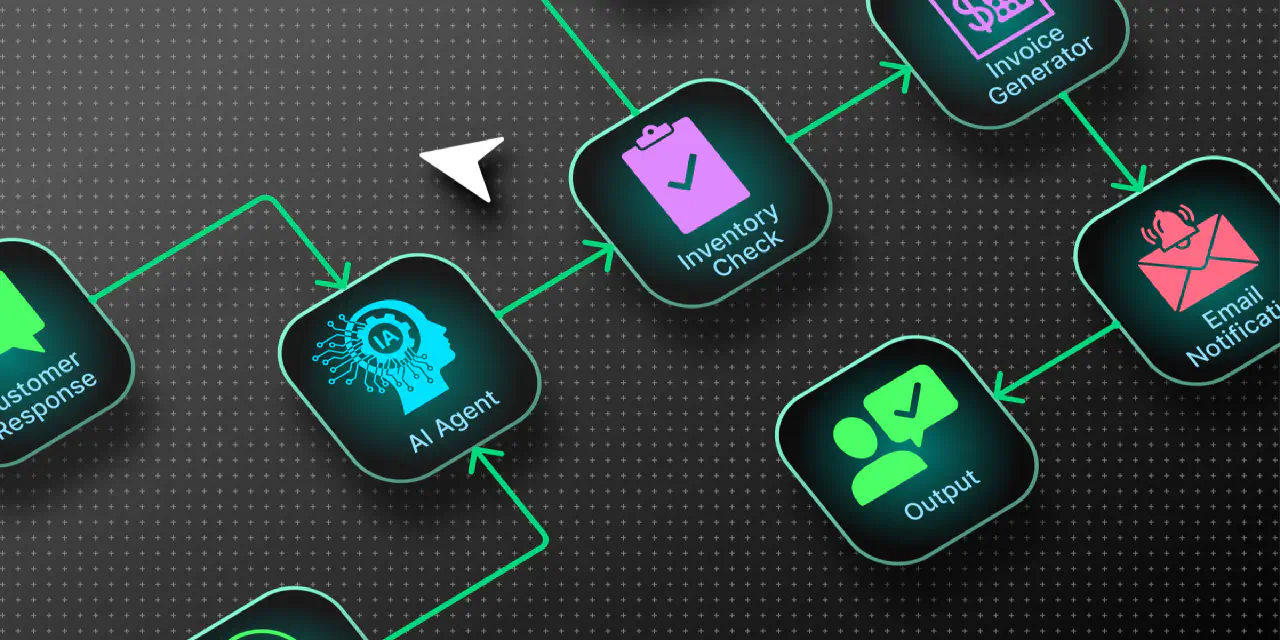
No-code workflow automation is software that connects different software tools to work together, usually through drag and drop instead of manual coding to build workflows (sometimes called scenarios). These workflows can be triggered when something happens in one software tool, scheduled to run at specific times, or manually.
You can think of these workflows as a set of standing instructions: if this happens, do that. For example, when a customer fills out a contact form, it passes through a spam detector before sending me an email and adding it to a CRM (Customer Relationship Management) if an AI detects it is a real client request.
As a developer, do you use no-code tools?
Of course. While I can build any workflow manually, no-code tools let me test and iterate quickly. Building code takes more than time; it also has long-term maintenance costs. I only build workflows by hand when I need full control or when a simple no-node solution isn’t enough.
Some examples of no-code solutions I’ve implemented so far for my business:
- Automated invoicing and payment reminders.
- Automated blog research and drafting using AI.
- Automated website updates to publish future blogs.
- Automated lead prospecting and prevalidation.
What can you build without code, and what can’t you?
Before you build anything, do the task by hand until it becomes a real pain point in time or accuracy. You should understand the process fully before you automate it. Automating a messy process just makes the mess happen faster.
Some examples clients have used:
- A new form submission creates a row in a spreadsheet or a contact in your CRM.
- A new order or support request sends you a message so nothing sits unnoticed.
- A won deal creates an invoice draft or a project folder.
How do you build your first automation step by step?
Once you have a well-defined process, you can get started on your first automation project. If you have a choice between multiple processes, I suggest you start small for your first project.
I’ll use a common example: a new lead fills out your website form, you get a row in a spreadsheet, and you get an email using Zapier.
- Write down the manual steps, listing what you do today, in order, including where the data comes from and where it ends up.
- In Zapier, a Zap is built from a trigger step and one or more action steps, as Zapier’s help center explains. Pick your form app and the event “new submission.”
- Add the first action by choosing your spreadsheet and mapping each form field to a column. Use the dropdowns instead of typing values so they stay linked to the real data.
- Add the second action by choosing Email, then write a short message that includes the lead’s name and contact details.
- Test with a real sample by submitting your own form and check the spreadsheet and your inbox. Confirm every field landed where you expected.
- Publish the process. A published Zap only processes new data created after it is published, so you will need to backfill the historical data manually or through other means.
Which no-code tool should you choose?
Ultimately, it depends on your budget and the tools you already use. You should check any no-code tool’s pricing page to get an idea of how they calculate usage and what limitations each plan has. In some cases, you may be good with just a free account. Also, you should check to see what software the no-code tool already integrates with to make sure it is capable of doing what you need.
Some of the bigger names are:
- Zapier: The easiest to learn, and the trigger-then-action model is simple. The downside is that costs grow with task volume, and each successful action counts.
- Make: It handles branching and data handling more visually. However, it counts operations per module run, and the number depends on how much data flows through. In Make’s own example, a Google Forms trigger returning 10 responses used 31 operations in one scenario run.
- Power Automate: A natural fit if you already live in Microsoft 365. It has hard limits, though: a single cloud flow is capped at 500 actions, 8 levels of nesting, and 250 variables.
Depending on what you are trying to accomplish, your existing software may already have automation capabilities, so I would check that first before moving to a third party.
How do you maintain and troubleshoot your automations?
Let’s face it: eventually, every automation breaks, apps disconnect, passwords change, forms get a new field, data changes, for example. Unfortunately, if you don’t design your workflow carefully, many failures will be quiet, and you will not know it failed.
Some no-code tools help mitigate the problem by adding retries or storing the trigger data so you can replay the run once you fix the problem. In some cases, the workflow may be automatically turned off.
Here is what I recommend you build into your workflow:
- Make sure to add a failure alert that messages you when a step fails.
- Spend five minutes scanning the run history weekly for held or failed runs.
- If you can and are comfortable doing so, put a spreadsheet between stages so you can rerun just one stage and fix bad data by hand.
When should you bring in a developer?
There is no hard and fast rule. It really depends on you and your business goals; however, here are some questions you can ask yourself:
- Am I fighting the no-code tool?
- Does the no-code tool not have what I need?
- Are mistakes expensive?
- Am I spending too much time monitoring and fixing the workflows?
Even if you are using AI to help you build a workflow, I would still be asking yourself these questions. AI is a great tool, but you need the expertise to ask the right questions and to know when the AI is just wrong.
Conclusion
No-code workflow automation is a practical way to save time without hiring a developer, as long as you understand the process first and start small. Build one automation, test it with real data, and add alerts so failures don’t go unnoticed. Get a developer involved when you have reached the limits of the no-code tool, or you’re spending too much time managing the workflow.
If you have any questions or would like to see how I can help, feel free to contact me.